Showing posts with label electronics. Show all posts

Monday, November 1, 2021

Handheld RC2014 System (RetroChallenge (sorta))

One of the great things about making stuff is that you can make stuff that doesn't yet, or shouldn't exist.  

I honestly didn't get anything done on my RC2014 projects for RetroChallenge this year, other than an idea, and some 3D printed stuff within the final few days of the month.

I've had it in my head for a while to make a gameboy formfactor RasPi system for a while now, even though I already have a portable Pi emulation system in my Atari Lynx enclosure.  So I found a model for the "super retropipod" enclosure on Thingiverse and printed it out, and ordered and then modified a 3.5" lcd and shoved it all into the case.


I decided i didn't want to make a PCB or hack up a perfboard to support tact switches, and I had a bunch of largeish 12mm tact switches, so I modeled and 3d printed mounting boards for those too.


Then I had an awesome-horrible idea.  I would mount a RC2014 inside the enclosure as well!  If I managed to make the enclosure a little thicker (about 1cm) I could easily fit a RC2014 mini or micro inside the case along with the pi and all of its fun stuff.  I could even probably also fit in the TMS9918A video card piggybacked onto it inside the enclosure.  So I modeled and printed out the thickness extension too!

Long story short, I have the beginnings of my ultimate multipurpose Pi/RC2014/Llichen-80 handheld!  And she's a chonky beast too!

I modeled and printed a piece to sandwich between the layers of the "pi-boy" enclosure I printed, and added a space for a nice switch for power on the side.  I still need to wire it all up, but I'm on my way to having this thing be AWESOME!  

Although I still want to make a "tall-boy" at some point... take two GB DMG enclosures, and extend the screen space to be taller, and put in a rotated, vertical monitor in the space there.  eg, use a 4" or 5" lcd in portrait instead of a 3.5" in landscape...


Next actions on this project:

  • Wire up the buttons to the GPIO header
  • Wire up the LED on the front panel to the GPIO header
  • figure out a power solution for the system (batteries, recharging, etc)
  • Mounting solution for RC2014 inside the enclosure without it moving around
  • Make a 2-board backplane for the RC2014 so I can also have the TMS board internally
  • Wire the TMS to the monitor too, and figure out a quick way to switch inputs... perhaps two NC momentary buttons that disconnect the monitor from each of the two inputs, so it will auto-switch to the other input. (or short the input to ground via 75Ω resistor?)
Links:

Saturday, November 9, 2019

RC2019-10 - A102 project - The end of the month of hacking


The short version is that I was super productive on these projects this past month.  I didn't complete it, but I never realistically thought I would be able to.  I lost a week's worth of time, or so, prepping our yearly Halloween Hack (blog post soon)... not to mention losing some time to work on building my Lego Saab 900... (blog post soon too).
One thing I will say, is that by combining the projects together, I tricked my brain into quite effectively "being okay with" working on one project or another, by them all being part of the same project.  So I would say that the month was quite successful.


So Anyway, I'm going to first go through a bunch of goals for the month, for the RC challenge, and in general, and briefly discuss my progress on them at a meta-level.  Then I'll get more into details about the actual work.

Overview and goals


Raspberry Pi / Emulation

I wanted to get the Pi 3 configured and booting right into an emulated  Amiga/Amibian environment.  I got the pi configured with standard raspian instead of Amibian, since I wanted this to be more of a general use machine.  It'd be nice to be able to use it for firmware development of the LL530 as well as the machine that it's targeted for.

So the target changed on this, but it is complete for now.

LL530 Development

I wanted to have the LL530 (USB Interface to Amiga serial keyboards, Amiga/Atari controllers and mice) fully finished.  Although I did not finish the firmware this month, I got more done on the project this month than I had in the past 6 months.  However, I was able to test the DIN pinout to discover that it's backwards, so I need to rev the board for those...

I didn't fully succeed, but I was successful.... if that makes any sense.

RC2014 Integration

I wanted to have an RC2014 Z80 computer built in as well, that I can connect to via serial port, for doing RC dev work without an emulator.  This aspect sadly got the least amount of attention.  I have an RC2014 mini installed, connected to the serial port on the Pi 3.  I've rewired the connection twice now, and I still cannot get it to connect using this wiring.

I spent time focusing on the other aspects.  So... 25% success.

Integration / Battery / Monitor / Enclosure

Most of the effort this past month was in this area.  I wanted to have the entire thing as a finished unit; to be able to be brought to a coffee shop, pull it out, turn it on and use it wirelessly. I can do all of these things right now with it.

So I would say this aspect was completely successful... although It does need improvements, particularly with the screen.


Installing The Linux

I started with a base Raspian image from their site.  I had the Pi hooked up to a HDMI monitor with USB keyboard and mouse.  After using Balena Etcher to get the image onto an SD card, I booted the  machine up.  I went through the basic setup, and updates.

I launched raspi-config from a terminal window, and went through to  enable ssh, i2c, and serial.

Next I installed some useful software packages:

apt-get install screen fs-uae-launcher stella

I made sure that serial was enabled  in /boot/config.txt,

enable_uart=1

I use screen as my quick and dirty way to connect to the RC2014 which is wired up to the uart on the raspi per the diagram above.  The reset line is wired to GPIO 4, so i use this shell script to "hit the reset button":

#!/usr/bin/python

import RPi.GPIO as GPIO
import time

print "Resetting the RC2014."

# setup GPIO4 as an output
GPIO.setmode(GPIO.BCM)
GPIO.setwarnings(False)
GPIO.setup(4,GPIO.OUT)

# send LOW (reset) for 1 second, then restore HIGH (normal run)
GPIO.output(4,GPIO.LOW)
time.sleep(1)
GPIO.output(4,GPIO.HIGH)

print "Done."
# return to high-z state
GPIO.setup(4,GPIO.IN)

The Red and Green LEDs are wired to GPIO18 and GPIO12, and I can run this script to do a nice fadey display on them:

#!/usr/bin/python

import RPi.GPIO as GPIO
import time

red = 18
green = 12

GPIO.setmode(GPIO.BCM)
GPIO.setup(red,GPIO.OUT)
GPIO.setup(green,GPIO.OUT)

r = GPIO.PWM(red, 100)  # channel=12 frequency=50Hz
g = GPIO.PWM(green, 100)  # channel=12 frequency=50Hz
r.start(0)
g.start(1)
try:
while 1:
for dc in range(0, 101, 5):
r.ChangeDutyCycle(dc)
g.ChangeDutyCycle(100-dc)
time.sleep(0.01)

r.ChangeDutyCycle( 100 )
g.ChangeDutyCycle( 0 )
time.sleep( 1 )

for dc in range(100, -1, -5):
r.ChangeDutyCycle(dc)
g.ChangeDutyCycle(100-dc)
time.sleep(0.01)

r.ChangeDutyCycle( 0 )
g.ChangeDutyCycle( 100 )
time.sleep( 1 )

except KeyboardInterrupt:
pass
r.stop()
g.stop()
GPIO.cleanup()

I may rewire these, or wire up additional LEDs to the ones specified with the Amibian/UAE led indicators, which are defined as GPIO4 for activity, GPIO16 for "Power", and GPIO16 for a clean shutdown button.

LCD Monitor


For a monitor, I'm using a $10 3.5" composite monitor.  I had to do a few things to get it to work however.

I had to hack the power input so that it would run off of 5v.  These are made to be used in cars, so they expect 12v of power.  At the time I did this, there were examples of doing this modification on
other displays, but not this model.  I powered it up using 12v, then probed the outputs in the power supply section for a 5v rail... and I soldered a 5V input there.

Once I had done this, I connected it to the 5v power in the enclosure, and hooked up the video input from the composite output on the Pi 3.

One snag I hit though, is that it wouldn't work right, It would flash on when the Pi booted, but it wouldn't show the desktop. Testing the Pi with HDMI or a known working composite input worked just fine though.

I was trying all sorts of things, and eventually decided upon trying PAL  video modes instead of NTSC, and that worked.  I spent some time tweaking the overscan settings as well, to stretch the screen to fit.  I also noticed that the contrast viewing range was substantially better on the top side of the display, so I ended up mounting it in the enclosure upside down, and I flip the video in the pi's config too.

So the changes that all this amounts to for /boot/config.txt are:

disable_overscan=1
display_rotate=2

overscan_left=0
overscan_right=0
overscan_top=5
overscan_bottom=5

sdtv_mode=2
sdtv_disable_colourburst=0

framebuffer_width=320
framebuffer_height=288

Although, as you can see from the screenshot above, it's basically unreadable.  So I was able to get it to work, but any future development on this will need to be with a different display.  Something with at least 480 rows, so that Amiga emulation can be reasonable on it.

Combining it all, and the Future...

I spent a few evenings rewiring that keyboard which mostly works really well.  I'm using a 5000mAh battery and get an undetermined-but-better-than-my-old-iBook amount of time with it.

The display is garbage.  I'm currently looking into replacing it with an HDMI-based 4" Waveshare IPS display with an 800x480 resolution for about $40.  Surely that will require moving around hardware inside of this enclosure, and since the display is meant to piggyback on the Pi, I will lose my integration board.

Obviously, I'll need to install the Amiga emulator, Tandy 102 emulator, my Model-T-Shell, and the Arduino IDE so that I can continue development on the LL530

In short, I'm super happy with where things are now, it just needs some tweaks to get it to be usable as a primary system. :D

Saturday, July 28, 2018

Digital Logic in Javascript...


I needed some time off from my main project right now, and I had this bug in my brain to try out some of this, so I did a thing.  It uses javascript, jquery, bootstrap, and css stuff to do the whole thing. I use some of this at work, so this was a great chance to learn a bit more about that tech.

So here's a link to the quickly and horribly named "Logicr", pronounced "lä-jik-ər".

It's essentially a tiny javascript library/set of classes that simulate digital logic.  I'm not going to start drawing out diagrams of class hierarchies because that would take too long to do.  Instead, i'll quickly explain a bit of it, and then explain what the interface is showing.

At the bottom level, there are objects that are "pins".  This is a thing that can be set with a low, high, or floating data level.  I made the level actually a value from 1-100, below 25 is "low", above 75 is "high" and in the middle is "floating".  When you read them, you get back a true/false value, and you can write the 0..100 level, or true/false.  I made it this way so that i can eventually simulate pullups/pulldowns in the circuits.

Those pins are included in "nodes", which have a collection of inputs and outputs.  One example of a node is a logic gate.  A typical gate has two inputs, A, B, and one output, Y.  When the nodes get their update() call, they do whatever math is necessary to read in from their inputs and set their outputs.   Currently the system supports the basic 1-2 input logic gates: Not, And, Nand, Or, Nor, Xor, as well as one-pin output "sources" that generate High, Low, and Float output.

Another node is a "clock".  This one toggles its output once a second (1000ms) between high and low levels.

Another type of thing in the system is a "wire".  Wires are just lists of connections "from" and "to" pins on nodes in the system.

In the above example, there's a clock node (XTAL1), whose output Y goes to the first LED, named "clk".  There's a second wire from XTAL1's output that goes to the input of a Not gate (Inverter), in-turn, whose output goes to the second LED, "!clk".

You may notice that they don't change instantaneously.  That's because the system is set up to update all of the nodes first, then update all of the wires.  This prevented having to actually generate a real directed graph, and deal with loops and recursion and loops and recursion and stuff.  It probably simulates propagation delay on real parts, but i'm sure it has its own unique quirks.

So every 50ms, it goes through and tells all of the nodes to do their math, then immediately goes through the list of wires, reading from their FROM and writing to their TO.

So for the clock circuit:

  • Nodes:
    • Clock XTAL1 running at 1000ms
    • LED D1, blue, labelled "clk"
    • LED D2, blue, labelled "!clk"
    • Not gate IC1
  • Wires
    • XTAL1.Y to D1.A -- connects the clock to the first LED
    • XTAL1.Y to IC1.A -- connects the clock to the not gate
    • IC1.Y to D2.A -- connects the not gate to the second LED

That's the basics of it.

But there's more.

I added a few input devices and output devices.  First is the switch.  The switch is essentially a html checkbox at its core.  When the switch node gets called to update, it reads the value directly out of the checkbox widget in the browser, and sets its output pin to the appropriate value.  Similarly, the LEDs are just a "div" that's made round and the right color (dim/bright red, etc) via CSS.  When the LED nodes are updated, they read the value from their input pin, then apply the appropriate "on" or "off" class to their html div.  The browser and CSS take care of the rest.

There's a couple other things happening in the circuit there too...

The amber switches are the A and B inputs to an XOR gate.  The A and B switches also go to the amber LEDs with the same labels, so that you can see what's going on there.  The output from the XOR gate goes to the green LED labelled Y.

The four red switches labelled 0x01, 0x02, 0x04, and 0x08 are run into a sort-of ROM, implemented as just a simple 16 value lookup table.  The ROM has 4 inputs and 8 outputs.  The 8 outputs are wired to the red seven-segment display node's "a"-"g" inputs, which light up the segments of the display on the web interface.  As you toggle the switches, the appropriate number is displayed.  The ROM data is basically a lookup table of which segments to drive for each value 0x0..0x9,0xA-0xF.  The equivalent of the 74LS47 ic chip.  I was originally going to build this circuit using logic gates, but it got really complex...  I may still do it eventually, once i have a better editor.

Mess with it...

In the interface, if you scroll down, you'll see an editor section at the bottom. Press the "Load Default" button to fill the text box with the circuit description that's running, and you can see all of the logic nodes and wire connections. Press the "Run Circuit" button to read in the JSON content from that window and rebuild the internal logic to use it.  The content there has to be valid JSON, otherwise it won't work.  The "Run" button will have a green border when it's valid, red when it's not.

Future

So yeah. This was meant to be a quick test to see how well it could quickly be done, and expanded upon for a possible future project that I've been thinking about for a while. There are still more component classes I want to add, such as "packages" which can group together circuits... for example, creating flip-flops using gate logic, or building that 7-segment decoder, or more complex things...

I also would like to make an in-browser editor of the circuits.  I've been looking at jsPlumb as well as a few other solutions for doing "create movable boxes with connection magnets that are connected with wires" type of things.  I may just spin up something of my own, as having draggable boxes is fairly easy to do using CSS/JS and then connections are just SVG lines between them, etc...  Although i'm sure the nuances of the interface make it more complex than it seems...

Oh. and this is running in my tiny page thingy, llmin... It's basically a wrapper for a page that sets up jQuery, bootstrap, and some other stuff, so that I don't have to create that boilerplate every time I want to make a page to test stuff. ;)

Friday, April 28, 2017

Building some RC2014 upgrades...


I've been working on upgrading my RC2014 Z80 computer for the past few months, but in a very low-impact-to-my-finances-that-can't-support-it-otherwise way.  This post will just go into explaining a few of the upgrades I have in mind,

First of all, my current hardware scheme, the "RC2014/LL MicroLlama" as I call it, is and has been fully functional in its current state, and is emulated well in my emulator.

I started working on a mass-storage solution for the MicroLlama, which I have slightly back-burnered this month so that I could attempt to focus on the 2017-04 RetroChallenge ("The Andy Project"), but I'll likely pick it up again next month, especially with some of the upgrades I now have in my hands, which I will now briefly talk about...

Dr. Scott M. Baker's Bus Supervisor Board

A ton of chips and a well packed board!
I just received a "kitted" version of Dr. S.M.Baker's RC2014 Bus Supervisor board. Major kudos to Rob Leisenfeld from the RC2014 community...

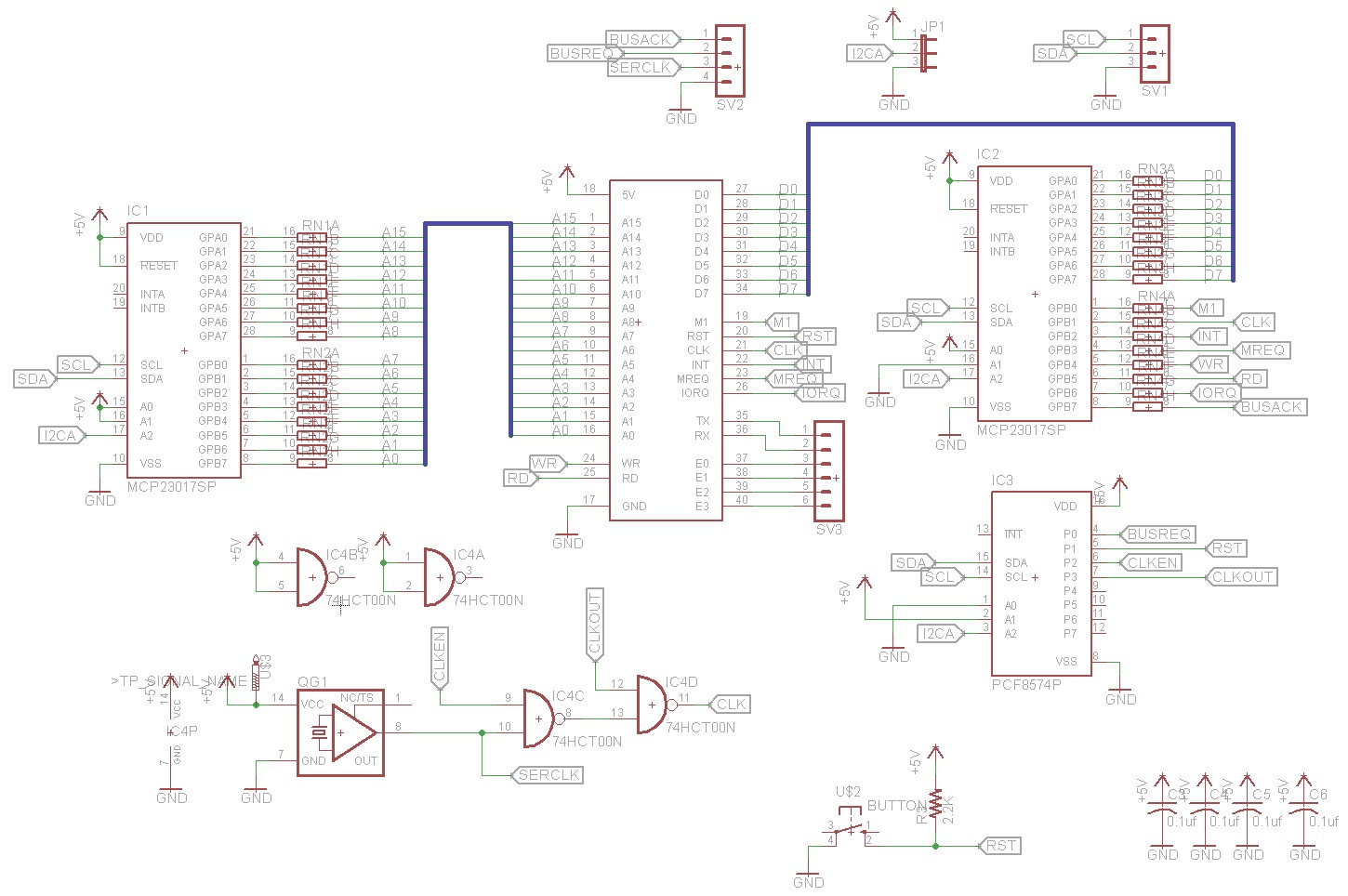
The short description of this is that it has some I2C I/O Expanders that sit on the entire bus (Data, Address, Control) as well as replaces the system's 7.37 Mhz clock board.  This can be used to snoop on the system, read/write IO, read/write RAM, etc... taken one level above that, you can use SMB's python scripts to upload data right into RAM, thus eliminating the need for a ROM module.

People have successfully used this to run 64k RAM-only RC2014 computers, and upload the program ROM from their Raspberry Pi. (Schematic, GitHub link to software)


It took me about 15 minutes to figure out the orientation of that crystal.
(Pin 1, the pointy corner, is in the bottom right)
Also, I'm not sure the jumper configuration is correct yet.
That's where my personal problem with it comes in.  As it stands, his project uses a RasPi to communicate with the board over I2C.  This is fine, however it does not fit within my workflow.

I do not really have a RasPi to use for dev work, so my solution is to take a tiny Arduino Leonardo clone ("Micro-SS" like this one), with a cable connecting its I2C lines to the Bus Supervisor Board.  Then, I'll make a thin Serial-I2C bit of software and making some desktop tools, perhaps in python to fit with the original from SMB.
My "proof of concept" for USB-I2C communications.
Here it's connected to an RGB color sensor.
The end result is that in my Z80 project makefiles, i can add a target for the generated .HEX files to be downloaded directly to the physical RC2014.

I've made a cable for my Micro-SS and have built my Bus Supervisor Board.  As you can see in the photo, this is it set up on a powered RC2014 backplane with only the standard IO module, and a few LEDs on a few data lines, so that I can test out everything before putting the CPU and RAM on there, potentially damaging them.

Obviously, it would also be possible to include a couple of ROM programs directly into the MicroSS, and possibly store a small one in the ATmega 32u4's EEprom as well.  Some buttons on the MicroSS could be used for injeting these pre-stored programs.  i could even see a program that generates a menu that the arduino can basically farm out to the Z80 to get user responses/menu options, etc.

Additionally, I can make a RC2014 bus - to - pac-man bus adapter, and actually deploy code-in-development directly to the machine from my desktop from the makefile/build scripts.  ... This is a dev tool I've wanted for about 20 years now!

Lots of possibilities!

I will put out another blog post and a github link for the supporting software, when I've got this working. (estimated - mid next month)

64k RAM and Pageable ROM

I also received this past month the boards for these two official RC2014 boards: the 64k RAM and Pageable ROM.  As you can see in the pic, i still need to order quite a bit to make these work.  Now that I have the Bus Supervisor board, the Pageable ROM is less interesting to my needs, although I may still adapt my RC2014/LL design to use these pieces instead.

You can see pics of these in the top of this blog post.

The 64k RAM will definitely work well with the Bus Supervisor board, however the Pageable ROM board has definitely taken a bit of a slip down my plate... Until I can get the parts in for the RAM (sockets, etc) I can use my existing unmodified 32k RAM board for the upper segment of memory ($8000-$FFFF) and my slightly modified second 32k RAM board for the lower segment of memory, I just have to manually enable it for read/write.

Sunday, October 2, 2016

RC2014/LL and RC2016/10


The RetroChallenge is upon us again!

This time around, I plan on working on my Z80 homebuilt computer, the RC2014.  (Website for RC2014, Order a RC2014) For a few months now, I've had my RC-2014 computer built, and modified to be an RC2014/LL computer. What this means is, is that I have some modified modules using no additional external hardware.

The above picture shows my RC2014/LL system with its extra RAM module, and the C0 Serial expansion board to the left, with the SD card interface board (SSDD1) on it.

The basics of this design:

Unmodified RC2014 modules:
  • Z80 CPU module
  • Clock module (* see below)
  • Serial console interface
  • RAM module (for RAM in the range $8000 through $FFFF
Modified RC2014 modules:
  • Second RAM module
  • ROM module
  • Digital IO module
Additional hardware:
  • Second ACIA Serial port at $C0
  • SSDD1 (Serial SD Drive)
(*) While the clock module is unmodified, it technically is modified. I have added a 10 uF (50V) cap between the reset line and ground to be a quick-and-dirty power-on reset circuit. It works perfectly.  Every time I power on the computer, it "presses the reset button" for me. ;)

The plans to mod these parts are available here.  This is currently fully functional and tested. The modifications use unused gates on the boards, so that it requires no extra additional hardware or boards to implement. The basic theory to the /LL modifications are as follows:


Bit 0 (0x01) of the Digital IO module is tied to one of the extra bus lines on the backplane.  Let's call this "Extra-A".  When you do an "out" to that port of "0x01", it will trigger the Extra-A line.


The ROM module "out of the box" is configured such that if there is a memory access, which is a read from address $0000 through $7FFF, it will enable the ROM, and it will put its data on the bus.  My modification adds in one extra condition to this.  It adds in that only if the Extra-A line is LOW, that the ROM will be enabled.  This means that when Extra-A is 0, the ROM works. When Extra-A is 1, it's as though the ROM doesn't exist.


The RAM module "out of the box" sits at the high half of memory space ($8000-$FFFF), and is always enabled on memory READ or WRITE to those addresses.  The modification to this module is threefold.  First, it sits the RAM at the low half of memory space ($0000-$7FFF). Secondly, it is set up that WRITEs to this memory space will always work, regardless of Extra-A.  Thirdly, it is set up that READs to this memory space will ONLY work when Extra-A is HIGH.

The end result of this is that when Extra-A is low, reads in the low half of memory will come from the ROM.  When it is high, reads will come from RAM.  Writes ALWAYS go to RAM.

This is quirky...

I admit this.  It means that you can (and I will) write a bootloader/monitor ROM that is enabled on power-on, will read from a mass-storage device and write into anywhere in RAM... It can load a 64 k byte memory image into RAM, and then switch off the ROM and it will all work.  The quirkyness is that you cannot verify the loaded-in memory in the low range of ram, since reads will come out of the ROM.   Obviously, you also need to do this routine completely out of registers, as your stack variables will get overwritten if you're not careful.

Anyway....

If you want it to behave like a stock RC2014, remove the jumper from the IO board to Extra-A, and instead add a jumper from ground to Extra-A.  I have added a switch to mine to force this in the case where the IO board comes up in the wrong state.

Additionally, I have added a second serial port, which basically follows the circuit for the first port, but it sits at $C0, and does not have an interrupt line wired to it.  The RX/TX on that one comes out to a FTDI-like pinout header, which is where my SSDD1 module plugs in.  The plans for this serial port are available here, and can be seen as the brown perf-board on the left of the topmost image of this post.

The SSDD1 module...


The Serial SD Drive module is the mass storage module that I've created for my Z80 to interface with. I know that I can push the FAT filesystem support onto the Z80, but that would require substantial effort.  I instead decided to go with the model where I have a smart serial-based device that you tell it "i want this file" and it sends it out.  Like a local BBS. ;)

The use of a serial-driven drive is not unprecedented.  It's somewhat modeled after the Commodore 64/Vic 20's "IEC" serial interface for floppy drives.  It also mirrors it in that the drive has some smarts in it to deal with the drive architecture.

I also went this route for the ultimate form of this computer, which is to run CP/M.  CP/M expects drives with a Drive+128 byte Sector layout.  While other Z80-CP/M computers implement this by having direct interface to the sectors on the spinny disk/cf/sd card, I will do it by having files on the SD card, for the most amount of flexibility.  There will be a "drives" folder on the card containing folders named "A", "B", "C", and so on.  These letters are the drives.  In each of those will be directories for the tracks, named "0000", "0001", etc and in each of those, files named "0000" "0001" "0002" etc. These files are the simulated sectors on the disks.  It will be easy to build virtual drives for other use out of this.  It also means that I won't need some special interface on a modern computer to talk with this.  I won't have to do 'dd' style transfers to get at the data... It's all just sitting on a FAT filesystem.

The implementation of this module is based on an Arduino with a microSD breakout module.  The serial interface communicates directly with it, and it sends the content via serial back to the Z80 host.

The above picture shows the SSDD1 module off of the RC2014/LL expansion board, and instead wired to a breakout board where I have a second FTDI serial-USB interface so that I can debug the hardware more easily.

And that brings me to the current Retro Challenge...

My goals for this month is to do a few things here, to finish up this computer system...
  • Finish up the firmware for the SSDD1
    • Sector load/save support
    • File load/save of intel hex files
    • directory create, list, remove
  • Write the SSDD1 emulation for the emulator
  • Finish up the loader and burn it to a ROM
  • Write a CP/M bios that uses the SSDD1 interface
  • Build CP/M disk/sector files 
  • Play Zork
Stretch goals:
  • Extend the NASCOM BASIC to support the SSDD1 for loading and saving.


Friday, June 24, 2016

The RC2014 Computer: 1. Emulation


As you may know, I'm bigtime into Z80 computerey stuff.  For the past 20 years or so, I've been hacking Pac-Man ROMs, been maintaining the Ms Pac Disassembly, and have made my own Z80-Pac based programes over the years.

Fairly recently, I got a Kaypro II from a friend at interlock, and it worked perfectly, and looked brand new.  I felt like I couldn't hold on to it... "it belongs in a museum!" ...so I donated it to ICHEG/Strong Museum of Play.  But it helped whet my appetite for a CP/M computer.

Another project I've been wanting to do was to start with a Commodore 64 (I know it's not Z80, it's 6502ish), a floppy drive, some blank disks and a hardware manual and code up, from scratch, an OS.  Start out by making a text editor, assembler, GEOS-like GUI, etc.

These projects recently had an opportunity to overlap, and they all seem to converge on the RC2014 modular Z80 computer.

The RC2014 computer is a backplane-based modular computer created by Spencer Owen, based on the Z80SBC by Grant Searle.  There are modules for the CPU, RAM, ROM, Serial Terminal interface, and so on.  It is available as a kit from tindie.com.  Once assembled, you hook up a serial terminal to it, power it on, and you get a 1980s-esque BASIC prompt onto which you can write your 32kbytes of program.  This is based on Grant's simplified Z80 computer, so there is no off-line storage.

My general plan for the RC2014 is:
  1. Emulation:
    1. Create an emulator for the system to aid with rapid development
      1. also bring my "bleu-romtools" from Google Code to github
    2. Add a serial-based storage solution to the RC2014 emulation to confirm proof-of-concept
    3. Add ROM swap out to the emulation
    4. Add 32k of ram to give a full flat 64k of ram to the emulation
  2. Hardware:
    1. Get a RC2014 kit
    2. Build the RC2014 kit
    3. Make a test ROM to run on real hardware to verify my toolchain is working
    4. Create a new serial card that sits at port 0xC0 (second serial)
    5. Create the SD Drive firmware for the serial arduino
    6. Hack the ROM and Digital IO boards to allow for disabling the ROM
    7. Add 32k hacked RAM to the system
  3. Name: RC2014/LL
    1. At this point, the architecture is different enough and well defined enough that I think a new name for this configuration is in order. I call this configuration "RC2014/LL".
  4. Port CP/M
    1. Create the BIOS
    2. Create the sector-based emulation layer in the SD drive
    3. Boot CP/M
    4. Play Zork


I started out by making an emulator using the Z80 Pack emulation system.  Once I got this running, I realized the limitations of this emulator and looked around and found another emulator that suited my needs better. (I wanted a way to "swap" memory around, which Z80 Pack would not do in a way that wasn't a major hack.)

I created a layer that adds disableable memory regions, and added emulation of the 6850 ACIA serial chip, and threw the 32k RAM BASIC ROM at it, and it started right up, running BASIC!

I added a second 32k of RAM (easy to do when you're emulating it!), and started creating the SD interface, also using the 6850 ACIA for communications.  I then added a port, emulating the IO card, on which bit 0 (0x01), when set, will disable the ROM... So any reads to the low area of memory will read from the ROM.  Whether this is set or not, all writes to that area of memory will actually happen to the RAM... they will just be hidden from reads until that bit is set.

I now have the basics of the RC2014/LL system emulated in software!  I created a boot/diagnostic ROM which can be used for all RC2014 systems which can probe memory to determine type (ROM, RAM, unpopulated), peek and poke memory, In and out IO, and other utility functions for the SD card interface.

Currently, I'm writing the SD card API which I will port to the Arduino Leonardo and SD breakout board which I have ordered, once those come this weekend, I'll shove them into my own serial board and burn a test ROM and see how it goes....

Tuesday, August 18, 2015

Retro Challenge 2015/7: Post-Mortem and project notes...

Current Project State

For this Summer's Retro Challenge (2015/7), I worked on a small widget that lets you use an Amiga mouse, Atari ST mouse or Atari-style Joystick.  I was successful in building it and having it be manually configurable.  There's a shell based interface that you can use to select which input device and output style is used.

All of the code for this project as well as further and future documentation is available at the project's github repository.

There are a bunch of things that I did complete during the "challenge"...

  • Arduino Leonardo based firmware with simple direct connection to a single D9 male connector
  • Two versions of the hardware, one quick and dirty, the other optimized for the parts I had.
  • Designed to use minimal external parts - just the Arduino board and a D9.
  • Serial interface shell to configure which device it is
    • Amiga Mouse (fully tested)
    • Atari ST Mouse (fully tested)
    • Atari Digital Joystick (fully tested)
  • Serial interface to select which output the joystick provides
    • Mouse movements
    • WASD keypress input
    • Arrow Key keypress input
    • HJKL keypress input
    • etc.  (support for MAME, Stella, Vice, etc)
  • "Explorer" to experiment with input device auto detection algorithm (which does work)
  • Amiga 500 keyboard input header (incomplete)
  • Amiga 500 to Amiga 1000 keyboard adapter (to RJ-22 4P4C telephone handset jack)
  • Documented Amiga keyboard adaption 
  • Documented Amiga - Atari ST mouse differences
  • Documented other D9 joystick pinouts (and how they relate, etc)

There are two features that I did not complete before the end of the month...

First of all, I was unable to get the keyboard support working before the end of the month. I was having a hard time with it only to realize it was a power issue.  The keyboard was consuming more power than my widget could provide.  It will require a secondary power supply to give enough oomph to get it working.  I also was unable to read from it once I hacked in some power.

Secondly, I had designed an algorithm to autodetect between the three different supported input devices, but I was not able to integrate the code in before the end of the month.  At some point I'll mix it in, and it will switch the kind of device it will be based on analysis of the signals (and signal pairs) of data coming in when it detects "motion".

Next Steps

At this point, I'd like to take the codebase as it exists now, and change the program flow to do the auto-detection of the device type, and then do the "appropriate" thing with it.  "out of the box" it will just "do the right thing" when devices are plugged in. Namely:

  • Amiga mouse becomes USB HID Mouse
  • Atari ST mouse becomes USB HID Mouse
  • Atari Digital Joystick gets configured to send STELLA keypresses (arrow keys, etc)
I will implement this at some point, perhaps during the next Retro Challenge.

Monday, July 13, 2015

Retro Challenge 2015/7 Update 2: Keyboard And Joysticks

Space Invaders running in Stella on my Mac.  Jasper loved it!
(He also liked the green light-up USB cable.  That's my kid!)

As of last night, I have finished code for the joystick-to-keypress controller, as well as the ability to save the configuration in the EEPROM in the ATmega chip. As usual, the code is all available here on github.  What this basically means is that moving the joystick will send down keypress codes to the host computer... so the computer thinks that a keyboard is being used.  This means that applications like Stella, an Atari 2600 VCS emulator, which expect you to use the arrow keys and space bar in place of a real joystick, can see those key presses when you move your actual Atari joystick!

You can now pick from a list of keyboard mappings, including:

  • Stella (Atari 2600 emulator) (shown above)
  • Vice (Commodore 64 emulator)
  • Mame (Arcade game emulator)
  • WASD (general PC game usage)
  • HJKL (vi cursor movements (because why not!))

I have also implemented a basic settings system that saves settings to the EEPROM within the ATmega32u4 chip.  It currently has "slots" for a few things, but could be expanded with the above joystick-to-keyboard mapping, to send other keypresses from joystick movements or what have you.

The settings system works with 4 bytes in the EEPROM to determine what's going on with respect to saved settings. The first 3 bytes are a sentinel.  If the code does not read the sentinel, it will assume it's on a new device, and will install default values to the EEPROM.  The current sentinel are the three hex bytes: { 0x53, 0x44, 0x4c } which are the ASCII string "SDL", my initials. ;)  Next at setting slot [3] is the settings version number.  Currently this is just '1'.  Settings slot [4] contains the usage mode for the interface port. (Mouse/keyboard mapping, etc).

I attempted last week to get an Amiga Keyboard working with this.  I wired up an 8 position pin header to the interface board, using the Amiga 500 pinout:

  1. Data
  2. Clock
  3. Reset (toggled when Ctrl-A-A is pressed)
  4. +5v
  5. key (missing pin)
  6. Ground
  7. Status LED (power)
  8. In-Use LED (disk access)
I was going to just wire out the Data, Clock, +5 and ground but decided that it made more sense to use the actual A500 pinout. I ran into a problem on this though.  The interface can't provide enough power to drive the chips on the interface board.  I measured 4.5v at the pin header, then 3.2v down on the interface board itself.  This isn't good.  I will have to wire up a new interface connector with an external power connector, probably a USB-B jack, to provide dedicated power to the keyboard.

I did however find a phone being discarded, and retrieved the two 4P4C (RJ-22) connectors from it so that I can make a better A1000 keyboard jack.  The first one I made used an RJ-45 wall mount jack, which worked somewhat for RJ-22, but it was pretty hacked. ;)

Some thoughts for future additional expansion:

I'm currently going for the "cheap as chips" version of this, which is why there's no interface on it, and you have to connect via serial port to configure it.  This was all intentional to keep the build parts list down... to the point where the only necessary part is a D9 connector!  However, in using it, a few future revisions may offer more usability at the cost of parts expense:

  1. Multiple D9 jacks for multiple devices
    1. Ports dedicated for Mouse, Trackball, Multiple Joysticks, etc
    2. Could be just 2 that simulate Commodore/Amiga
    3. Could be 4 to simulate Atari 800 joystick ports
    4. Could be 1 for mouse, 5 for joysticks, so you never have to disconnect them.
    5. Would require a parallel-in, serial out shift register, or a port expander
    6. Expansion at the cost of a few cents, additional wiring, and time to read in the content
  2. (related) configuration for multiple ports
  3. User interface - Was thinking that this could be a variety of different methods:
    1. single pushbutton, Red/Green LED for indication codes (flashing colors)
    2. single or dual pushbutton, RGB color addressable LED for indication codes
      1. each could be wired directly to IO pins
    3. dual pushbutton, 7 segment LED display
      1. Could indicate use mode(s), etc
      2. 'C' for commodore mouse, 'A' for atari mouse
      3. '0'..'7' for joystick mode display
      4. Could flash multiple digits sequentially for info etc
      5. Would require LED driver chip
Obviously, all of these would require additional effort beyond the "let's get this working" and can be seen as stretch-stretch goals.  ;)


Tuesday, July 7, 2015

Retro Challenge 2015/7 - Amiga Mouse, Joystick, Keyboard USB interface

Once again, it is time for the Retro Challenge! This time around... well, I wasn't sure what I was going to work on,... In my "I want to partake" email, I listed projects such as working on an SD-card based storage drive for the KIM-Uno, my "Bare Metal C64" long term project.. which will likely wait until I retire, as well as working on the Interlock Homebrew Computer System.

Then I started to get parts from an aliexpress order that I placed.  I received my Arduino Pro Micro which is the teeny tiny version of the Arduino Leonardo.  What makes this special is that the main chip on it is the ATmega 32u4. This is the USB interface chip used in the Arduino Uno.  It has all of the standard IO of the 168/328, but with USB HID support.  This means that it can pretend to be a USB keyboard, mouse, etc.  This is a HUGE feature if you want to make standard computer peripherals.


For some reason, it clicked that I wanted to make a USB HID interface for my Amiga mice.  Long story short, within an hour, I had a functional prototype. I was moving my Amiga mouse, and the cursor on my MacBook's screen was moving.

I figure that this will be great for using the Amiga emulators. It'll be nice to use an authentic mouse, joystick and maybe keyboard with UAE, Vice or just for fun for regular usage.  I know that there are other projects out there or products that do this kind of thing, but they're a bit pricey to have a widget that I can't expand or repurpose... and besides at its core, this is not really a difficult or expensive product.  The most expensive single part so far is the microcontroller, and that was $3.

A little background on the Amiga's mouse...

The way old optical ball mice work is that they have two rollers that sit on a weighted ball, one for the horizontal, and one for the vertical.  As the mouse moves horizontally, the horizontal roller moves, and the ball slips on the vertical one.  The rollers have an encoding wheel with little windows that make and break optical connections with a pair of sensors.  These two sensors generate two bits of data for each direction. (four total.)  These two rotary encoders generate a gray code quadrature output.

Movement in one direction outputs:  00  01  11 10  00
Movement in the other direction outputs: 00 10 11 01 00

So, if you read these in a tight loop, and detect changes you can detect movements in the horizontal and vertical directions. In the same loop, if you look at the button inputs, you can determine if the buttons are pressed.

This is the basis for this project.  By reading these values from a dumb (no internal processing) Amiga mouse, I can generate vertical and horizontal motion values.  I can then send these down the USB HID stack through the Arduino libraries, and voilà, we have an Amiga Mouse to HID USB mouse adapter.  NOTE: PS2 and ADB mice have more smarts in them and output movement deltas rather than optical sensor pulses.  Reading either of those requires serial communications and protocol decoding instead.

My cheat sheet for pinouts and connection information.


Within an hour of this brainstorm, I had this prototype:

Arduino Pro Micro (ATmega32u4), with headers and D9 cable attached.

Commodore Amiga mouse plugged into a spare serial cable re-used as a D9 cable.

Unfortunately, the serial cable I was using had all of the wires connected except for the line used for the right mouse button.  Oh well... For the "what's available on my desk" approach, it was good enough for a proof of concept.

From there, some simple acceleration was added to convert "quick" movements of the mouse to "large deltas" sent down as mouse movements...

The way I implemented acceleration was that each time through the loop, i check for Horizontal or Vertical ticks.  I store the ticks as +1, 0, or -1 in an array of the last 128 readings.  Then, I sum the entire 128 elements of each (horizontal and vertical) array, and use that as the mouse movement.  The faster the mouse is being moved, the more +1s or -1s there will be, so it sends a larger number.  It was a quick hack that I thought might work, that turned out to work perfectly!

Some upcoming additions that I might / probably will do:

- Atari ST Mouse Support.  The only difference between an Atari and Amiga mouse are that two of the lines (specifically D9 pins 1 and 4) are swapped. This is an easy change in software.  The difficult part is tracking down an Atari ST mouse to test with!

- Atari (Digital) Joystick Support.  By combining the button read code with the acceleration code hinted at above, I can convert Joystick movements to HID mouse movements

And really, from that point, it would be near trivial to add in HID keyboard support as well... I can send down WASD key presses for joystick movements... or really any other key presses based on joystick movements.

Additional features may include support for Amiga keyboards as HID keyboard, joystick as HID gamepad, etc.  In preparation for working with one of my old Amiga 1000 keyboards, I cleaned one up to get the years of finger grime of of it...

The right side has been cleaned using my proprietary cleaning technique described below.

Keyboard in the process of being cleaned. More like CLEANBOARD. HAHAHA. :(

Here's the (yellowed) keyboard with some keys removed. (The 'X' key has been missing for years, sadly.)  The proprietary cleaning solution is in that "Cascade" container.  I would use that dental pick tool and my hand noodles to pop the keys off of the keyboard.  Then I dropped them into the cleaning solution.  After about 30 minutes, I pulled each one out, wiped it off with my fingers, rinsed it off, and they were as clean as new.  The proprietary cleaning solution is one squirt of dish soap with some warm water. ;)

NOTE: Not shown is the process of removing all of the lint, hair and other bits of whatever that were stuck between the keys because that's kinda gross and you don't really want to see that anyway..

More on this project to come...

I briefly explored the idea of supporting Mac/Apple IIgs ADB mouse and keyboard support, but I quickly learned the complexity of the ADB spec, and am putting that safely outside of the scope of this project!

The code for this project and other development details are available on github in the AmigaInputToUSB repository.

Monday, November 10, 2014

Flat panel light box


I've been getting into making stained glass pieces, as I've been taking a class at the Rochester Memorial Art Gallery.  One of the tools they have available there is a light box, which I have used to make the template for the macaw piece I'm making.  I used it to help me adapt a pattern I found online into something that better suits my needs.  I traced it, then retraced that sketch.

The light box also works well to see how things look with light behind them, however it's not something I can use a lot for this, since my project is a couple dozen pieces of glass and we have to share the light box.


On the recycle pile at work was a couple of old, broken laptops.  I snagged two of them; one with an LED backlight, and one with a CCFT backlight.  I thought that the LED one would be easier to get working.


Over at Interlock, I tore apart the screens, tossing out the LCD panel, so I was left with just the light source, light guide, diffusion screens, and control circuitry.  Its control/driver board also managed the LCD itself.  There were many test points on the back, so I applied power to the "LED PWR" pin, ground to a ground point, then about +5 volts to the BLEN (assuming it to be "backlight enable") as well as the "PWM" test point. After futzing with it for a little bit, I gave up and focused efforts on the CCFT-based one.

The slightly larger CCFT (Fluorescent) based one had a single board that connected to the backlight tube through standard white/pink silicone-insulated wiring.  The board itself had one tiny connector on one side with a few pins that seemed to have obvious use.  V+, which assumably powers the backlight circuitry, should be connected to +5 or maybe +12.  GND, which of course is ground. Then two other connections "EN" and "CTRL", which I guessed to be "Enable" and "Control".  A guess would be to tie these to a logic "high" which might maybe enable the thing.

I connected just the V+ and GND to a power supply, and applied power.  Ranging from 0v up through 12v yielded no results. I connected the other two logic lines to power too, and started ramping up the power.  At around 7v, the backlight flickered on, but then wouldn't do anything until I brought the power back to 0v, and then back up again.

On a hunch, I figured that the backlight needs a higher voltage, and the logic stays at TTL levels.  Applying the same power to both would give a possible point between the two where both kinda worked, which is where I saw the flicker.  I hacked together two power supplies, with grounds tied together, 5v from one power brick, and the V+ to the variable supply.


I ramped up the voltage, and sure enough, it would get dim around 7v, then go full brightness around 12v.  It seemed to use about 300mA to drive it too. Good to know.  I found a 12v power brick and.. it would light for about 20 seconds then power itself off.  The 12v brick put out 18v.

I eventually found a brick that worked, so i hooked up two supplies, a 5v and a 12v and it was stable and bright.  Next would be the task to put in a 5v regulator to provide the 5v it needs, so i can run it all on one single power supply.


A simple circuit using a 7805 and two capacitors later, and I have 12v in, and a backlight lit!  I wrapped the circuit in tape (purple because it was there), hooked it up to a power connector, and reassembled the case.


Best of all, it all managed to fit within the old plastics. Huzzah!

Now I just need to put something on the diffusers to protect them from cut glass, maybe a piece of plexi, or even a large Ziplock or plastic wrap, and I'll be set!

Wednesday, November 5, 2014

Kindle 2 Repair


Again, from the recycle pile, I found something very nifty.  It was a broken Amazon Kindle 2 with 3G cell modem.  The screen was very messed up.  I attempted to charge it, which seemed to work.  I was able to connect it to my computer, and see the files on it, so I knew it was somewhat working.  A quick search on ebay showed a used, working eInk screen was $20.  I asked around on a few Kindle boards online about repairs, or getting Amazon to repair it, and the basic overall response was "just buy a new one".  That wasn't the point.


I eventually decided to drop the $20, order the screen, and take my chances that the main unit works and has decent battery life.  A few days later, I received what you see above.  I love how eInk displays hold their last image.  It's a pretty good sign that this one has a standard Kindle startup image showing on it.


Lots of screws holding this thing together.  After assembling and reassembling it a few times I got pretty fast at doing the whole procedure.  I wouldn't have been able to do it without resources like iFixit who provided teardown and disassembly procedures.


The battery removed from the left.  You can see, left to right, Battery bay, 3G sim card slot, cellular modem.  The orange bit at the top is the display screen ribbon connection.


The inside of the upper case, showing the orange flex cables for the side buttons and such.


Just for good measure, here's the entire board, removed from the casing.

That explains the bad screen display.

All in all, it took about an hour.  I had to disassemble and reassemble it a few times to get the display flex cable seated properly, but once it was, it all just worked.  Battery life is still excellent on it, the 3G service works great, and I've loaded it up with a bunch of books to read.


I hacked it a little to change the sleep display images but other than that, it's pretty stock.  Not bad for $20 and some manual labor!

I should note that about a week after I performed this operation, it suddenly decided that it would constantly press the "4" key for me.  Very nice of it, but not very convenient.  I disassembled it all again.  The keypad buttons all looked okay to me.  I even removed the '4' key from the main board to examine it, but it looked fine.  Something about that process, however, seemed to have fixed the problem.  It is currently working perfectly, and other than the battery dying on me, after 4 months of use, it has performed excellently.  :D